
How to use CustodyBook
Updated November 1, 2026 · Screens show made-up data.
Short guides for what parents do most. Each one takes a minute. New here? Your record is kept on your phone; the other parent never sees it unless you share it.
- How do I log today?
- How do I log an exchange?
- How do I add an expense with a receipt?
- How do I add a note?
- How do I log an event or an incident?
- How do I log a child support payment?
- How do I find entries and make a PDF of just those?
- How do I save hearing dates?
- How do I fix or delete something I logged?
- How do I add messages from a chat?
- How do I send a calm message?
- How do I create a report and check its fingerprint?
- How do I make a hearing packet?
- How do I back up and restore?
- How do I move to a new phone?
- How do I lock CustodyBook?
- How do I plan ahead and add it to my phone's calendar?
- How do I get a summary since my last hearing?
How do I log today?
- Open “Today”.
- Answer “Who was … with today?” with “Me” or “Co-parent”.
- Missed a day? Open “Calendar”, tap that day and choose “Me” or “Co-parent”.
- To tag a day, tap it in “Calendar” and choose “Holiday”, “Vacation” or “Make-up”.
Tip: To show your real names, open “Settings” and change “Names on the report”.
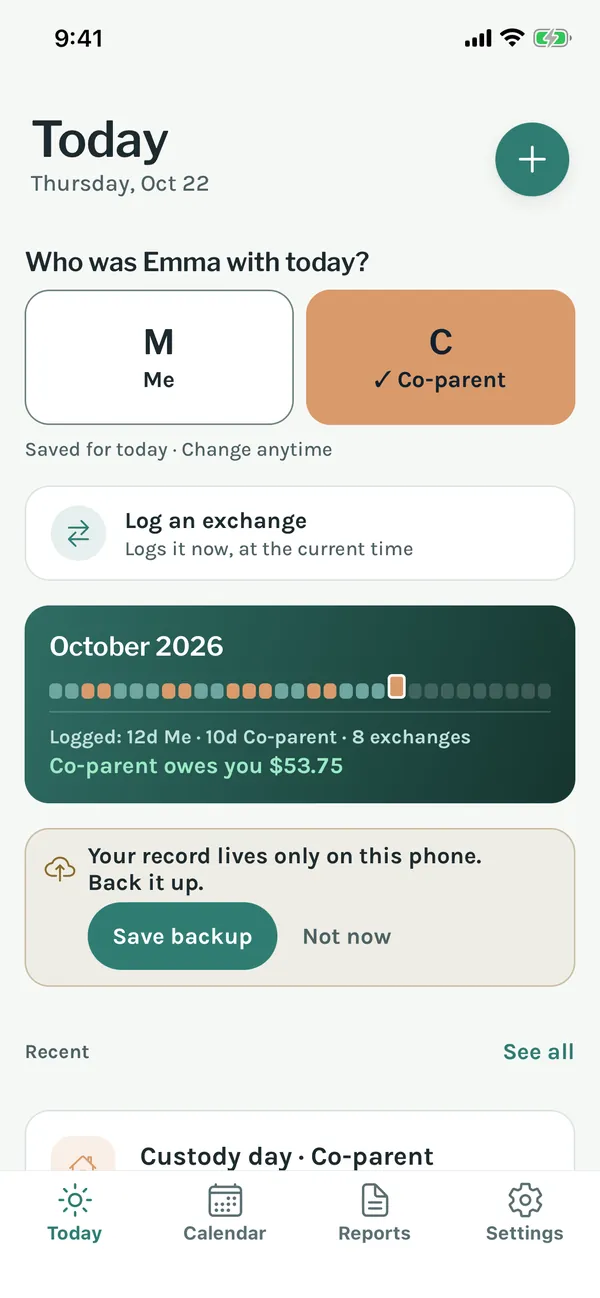
How do I log an exchange?
- Tap “Log an exchange” on “Today”. It saves the time right now.
- Choose who was expected: “Me” or “Co-parent”.
- Tap “On time”, “Late” or “No-show”.
- Tap “Add details” to add the “Scheduled time” and “Place”, then tap “Save”.
Tip: Logging it later? Tap “Add details” and set the “Actual time”. Logged it by mistake? Tap “Undo”.
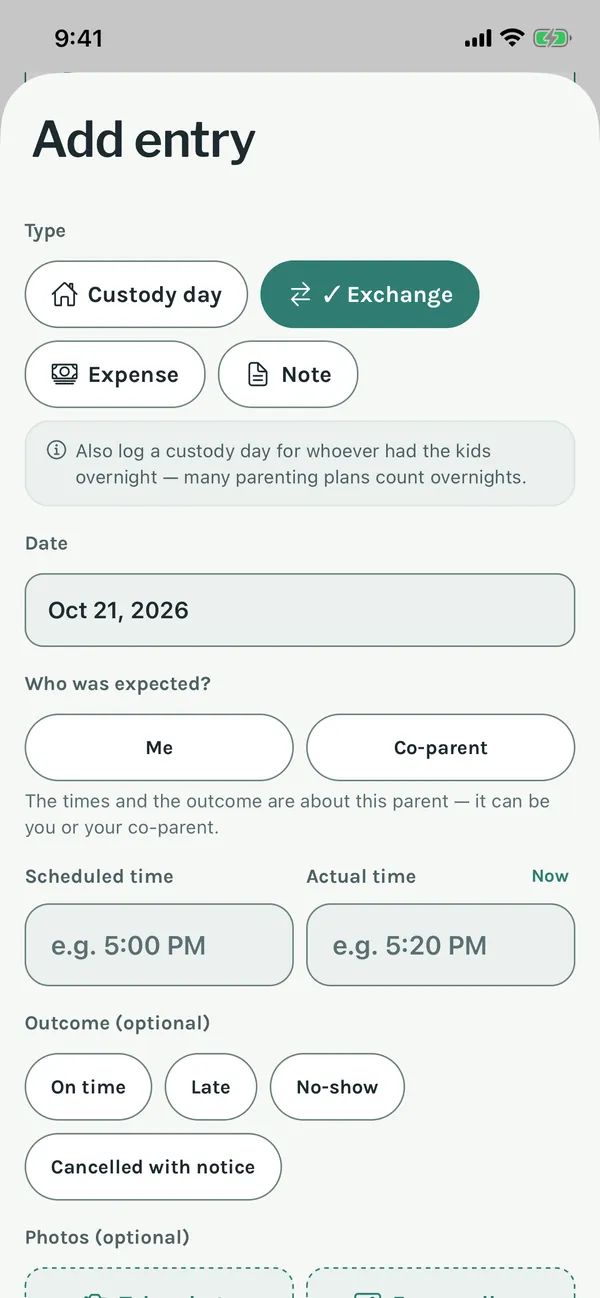
How do I add an expense with a receipt?
- Tap “+” on “Today”, then “Expense”.
- Enter the “Amount” and choose “Paid by”: “Me” or “Co-parent”.
- Under “Photos (optional)”, tap “Take photo” or “From gallery”.
- If you asked for their share, turn on “I asked my co-parent to pay their share”.
- Tap “Save”.
Tip: “I asked my co-parent to pay their share” only shows when “Paid by” is “Me”. When you're paid back, open the expense and turn on “Already reimbursed”. Both show a date you can change.
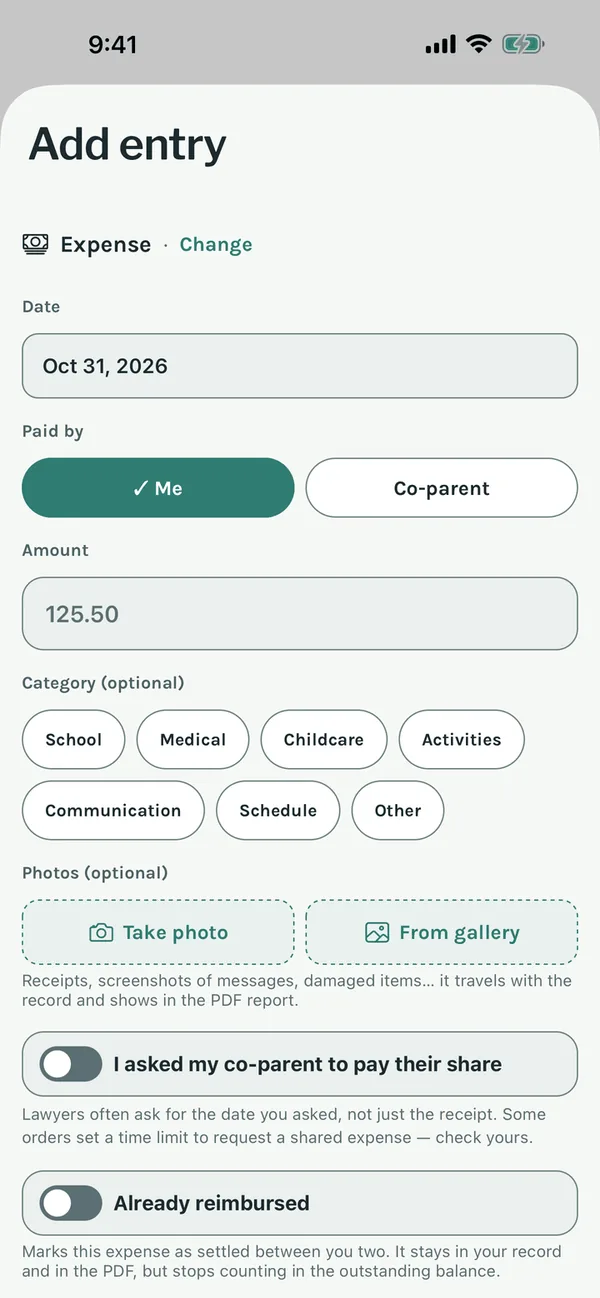
How do I add a note?
- Tap “+” on “Today”, then “Note”.
- Check the “Date”. Add “Time & place” if it matters.
- Write what happened in “Notes”, or tap a ready-made phrase.
- Tap “Save”.
Tip: Stick to facts: what happened, where and when.
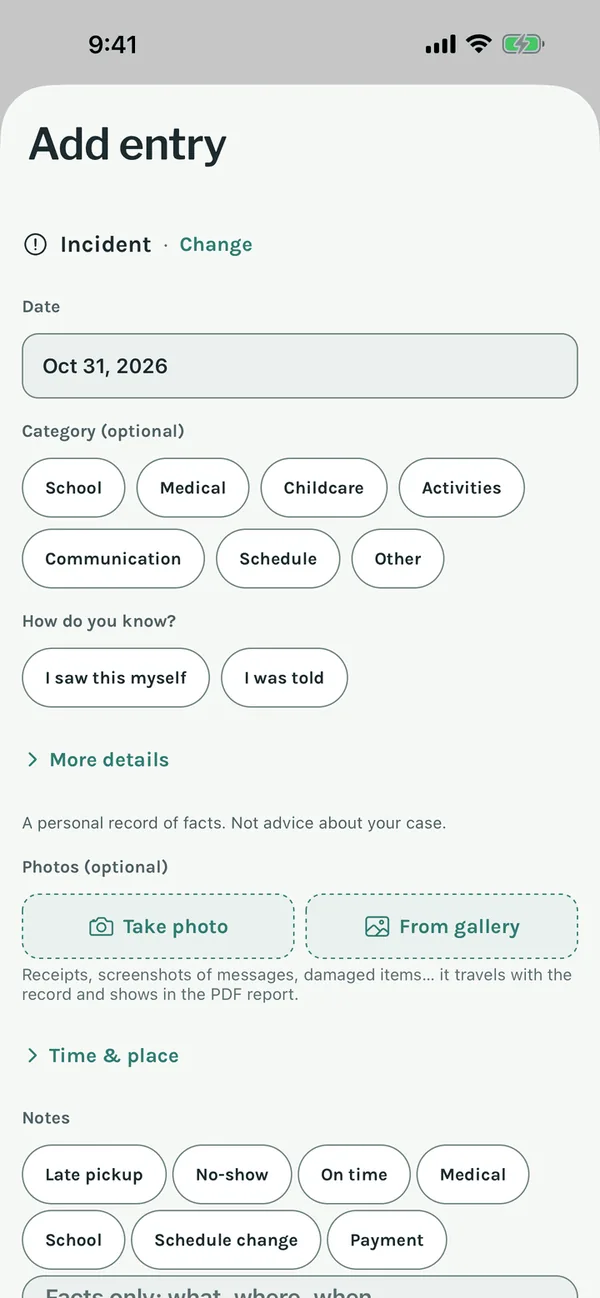
How do I log an event or an incident?
- Tap “+” on “Today”, then “Event” or “Incident”.
- Pick a “Category (optional)”, like “School” or “Medical”.
- Event: choose “Who attended”. More fields are under “More details”.
- Incident: answer “How do you know?” with “I saw this myself” or “I was told”.
- Write what happened in “Notes”, then tap “Save”.
Tip: Stick to facts: what happened, where and when. Events and incidents are a personal record of facts, not advice about your case.
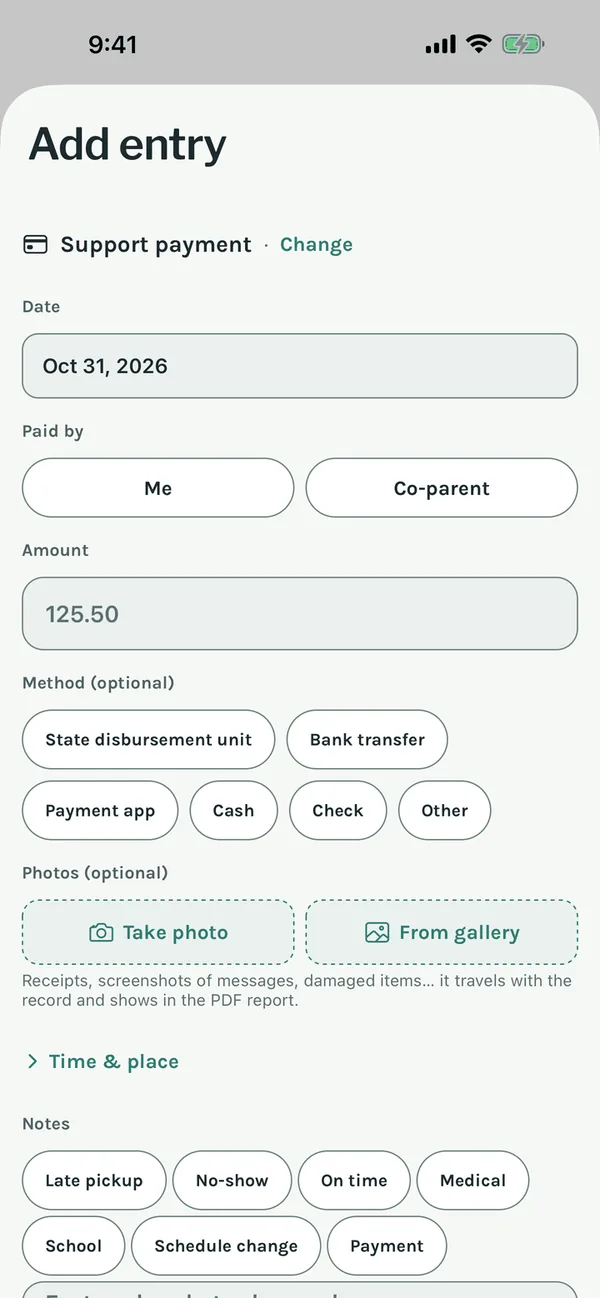
How do I log a child support payment?
- Tap “+” on “Today”, then “Support payment”.
- Choose “Paid by”: “Me” if you paid it, “Co-parent” if you received it.
- Enter the “Amount”. Add the “Method (optional)” if you like.
- Tap “Save”.
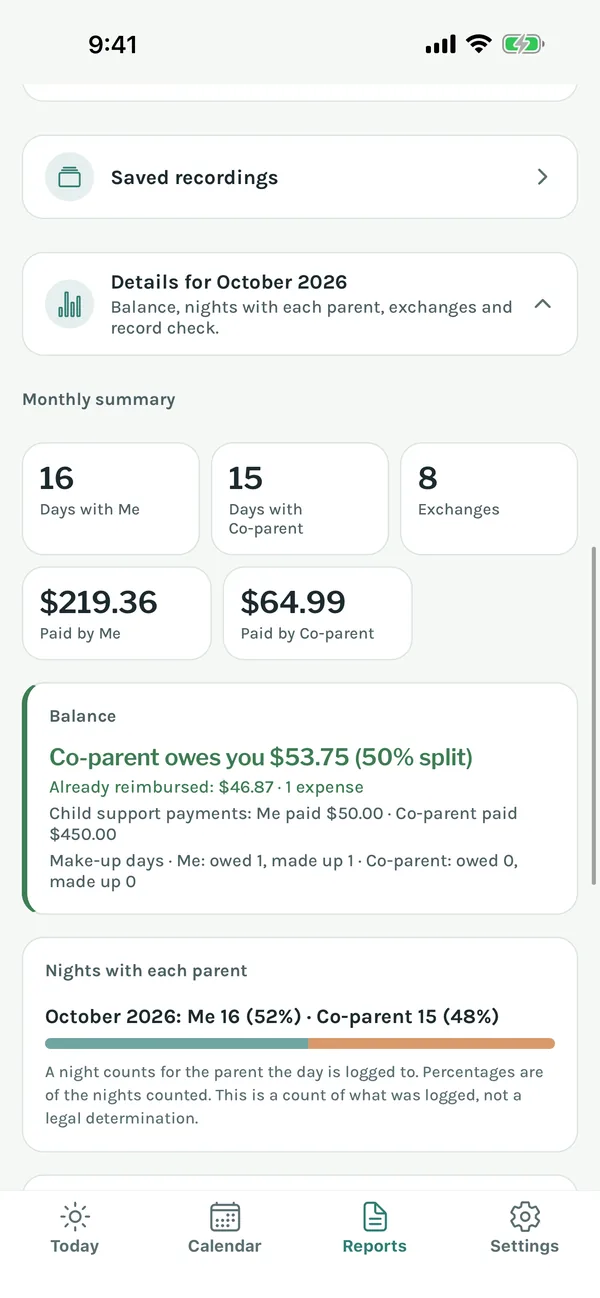
Tip: The month's payments show in “Reports”, under “Details for” that month. A personal record of facts. Not advice about your case.
Support payments are a personal record of facts, not advice about your case.
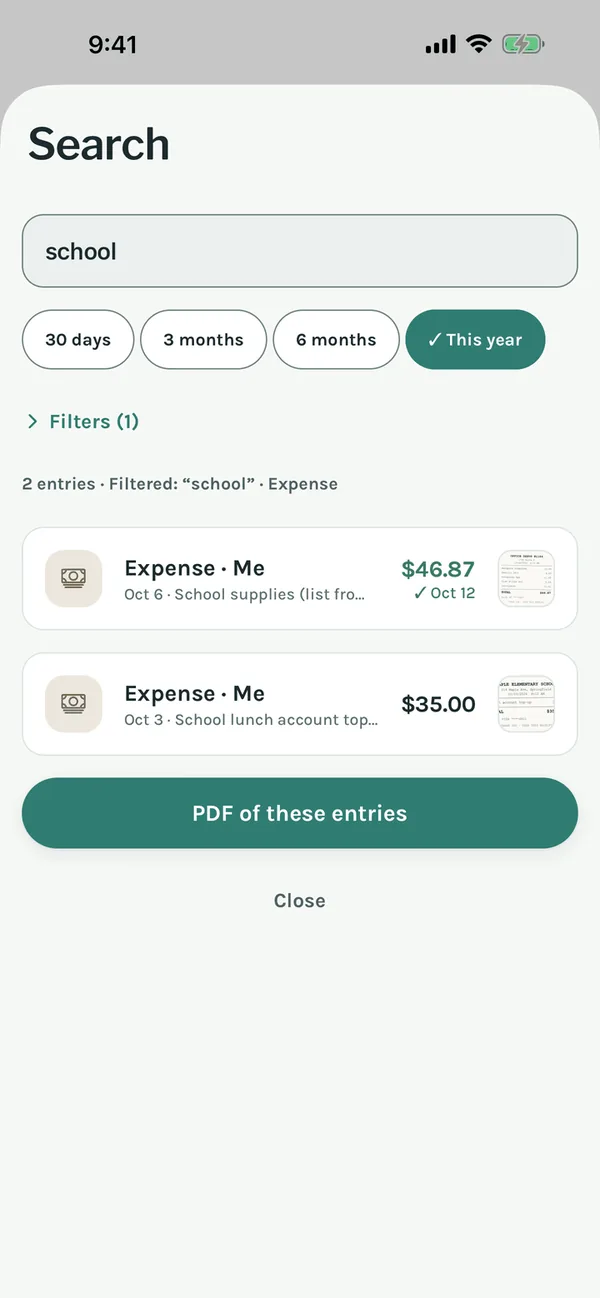
How do I find entries and make a PDF of just those?
- Open “Calendar” and tap “Search entries”.
- Type words from a note, a place or a name.
- Pick a period, as far back as “This year”.
- Tap “Filters” to choose a type, a category or “With photo”.
- Tap “PDF of these entries”, then share or print it.
Tip: The PDF lists only the entries that match, and page 1 says what you searched for.
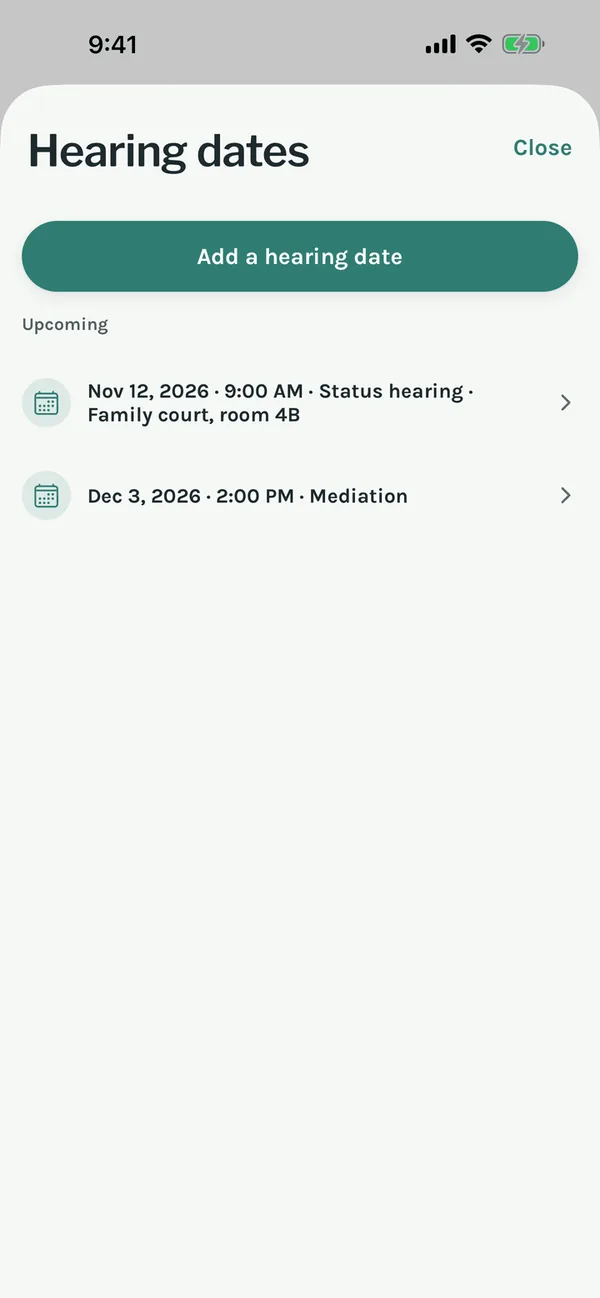
How do I save hearing dates?
- Open “Reports” and tap “Summary and hearing dates”.
- In “Hearing prep”, tap “Hearing dates”.
- Tap “Add a hearing date” and pick the “Date”.
- Add the time and place if you like, then tap “Save”.
Tip: Your next hearing shows at the top of “Hearing prep”. The dates stay in the app; add them to your phone's calendar too if you want an alert.
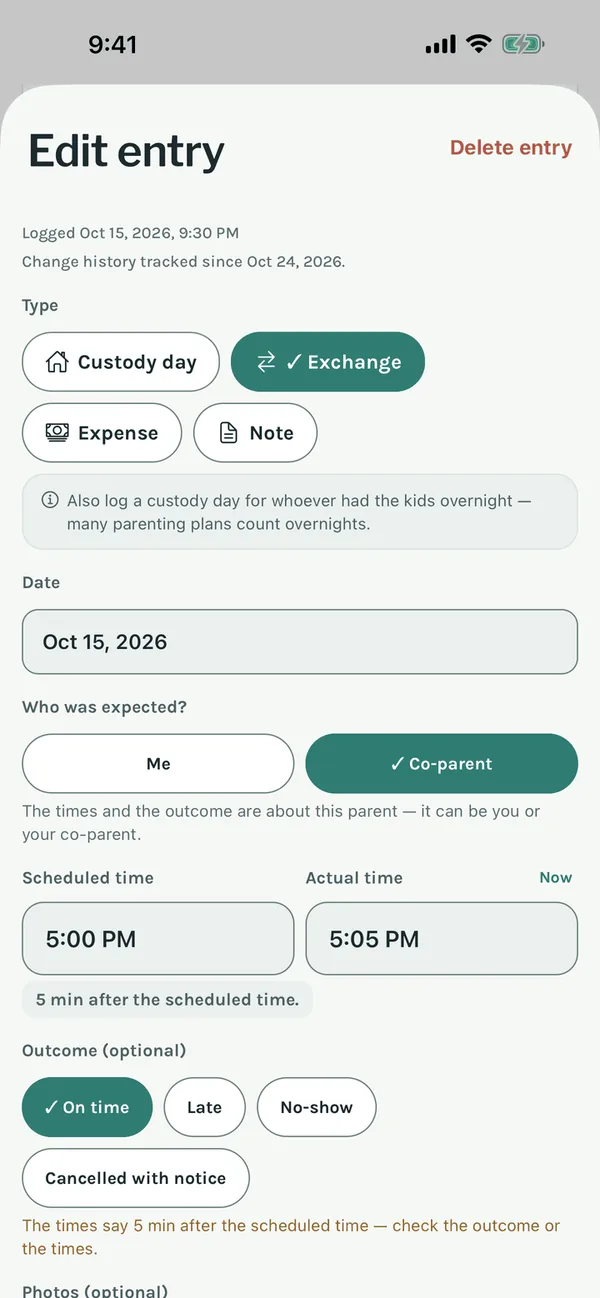
How do I fix or delete something I logged?
- Tap the entry under “Recent” on “Today”, or find it in “Calendar”.
- Change what you need in “Edit entry”, then tap “Save”.
- To remove it, tap “Delete entry” at the top and confirm.
- To clear a custody day, tap the day in “Calendar”, then tap “Clear custody”.
Tip: Edits are marked in the PDF report, with a change history. Just logged an exchange by mistake? Tap “Undo”.
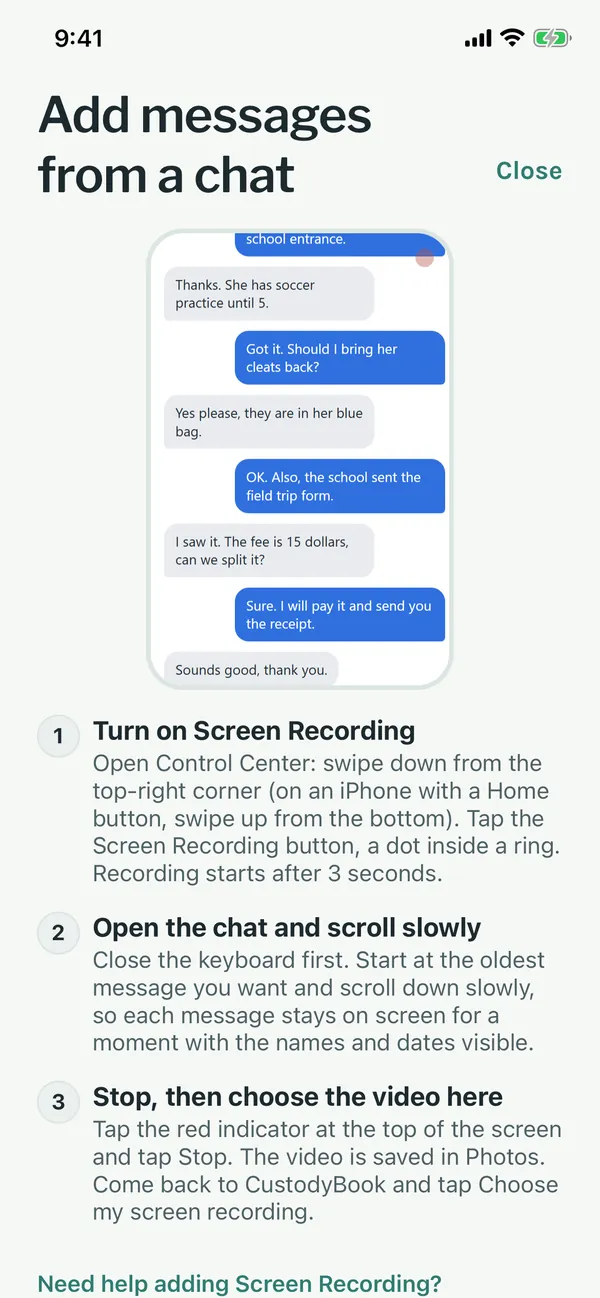
How do I add messages from a chat?
- Tap “+” on “Today”, then “Messages from a chat”.
- Do step 1, “Turn on Screen Recording”, then open your chat.
- Close the keyboard. Start at the oldest message you want and scroll down slowly.
- Stop recording, reopen CustodyBook and tap “Choose my screen recording”.
- Check who said what and the dates, then save the messages.
Tip: It's read on this phone; CustodyBook does not upload it. Fix any line marked to check before you save. The steps and “Start with a sample” show the first time; after that, open “Reports” > “Saved recordings” > “How to record a chat”.
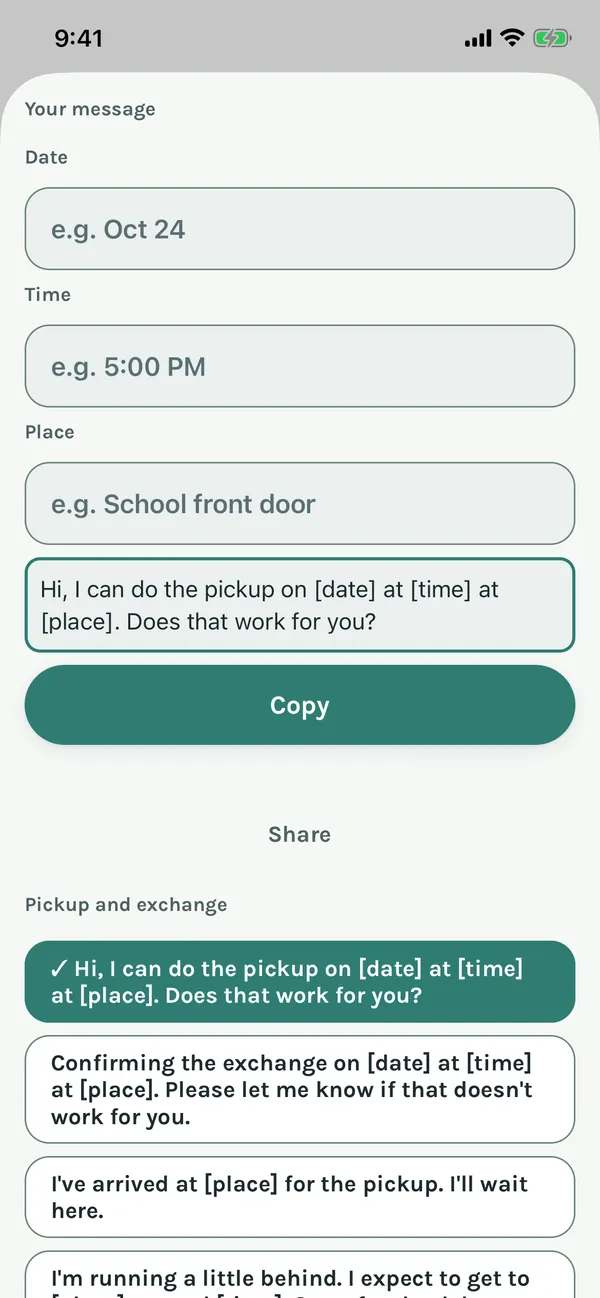
How do I send a calm message?
- Tap “+” on “Today”, then “Message templates”.
- Pick a message.
- Fill in the details, like “Date”, “Time” and “Place”.
- Tap “Copy” or “Share” and send it from the app you already use.
Tip: Anything you leave empty stays in [brackets], so you can see what is missing.
How do I create a report and check its fingerprint?
- Open “Reports”. “Create a report” is the first section.
- Pick a period, like “This month” or “Since a date…”.
- Tap “Create PDF”, then share or print it.
- On getcustodybook.com/verify, choose the PDF. It's checked in your browser.
Tip: Every page has a fingerprint. A match means the data file attached to the PDF is the same as when the fingerprint was made. It doesn't show who made the record or that the entries are true. Works with PDFs from version 1.9 on. For a PDF of one topic, use “Search entries” in “Calendar”.
How do I make a hearing packet?
- Open “Reports” and tap “Hearing packet”.
- Optional: tap “No hearing date chosen” to pick the hearing, and add a case name.
- Tap “Choose entries”, pick up to 15, then tap “Done”.
- Tap “Create packet PDF”, then share or print it.
Tip: Entries go in date order, with a cover sheet and labeled exhibits. Everything in a chosen entry is printed, notes included. It organizes what you logged. It is not advice about your case.
How do I back up and restore?
- Open “Settings” and tap “Save backup” under “Backup”.
- Keep the file off this phone, like in iCloud Drive or Google Drive.
- On the new phone, tap “Restore from a backup” in “Settings” and pick the file.
Tip: The backup holds your whole record, photos included. Keep it where only you can open it. Restoring replaces what's on that phone with the backup.
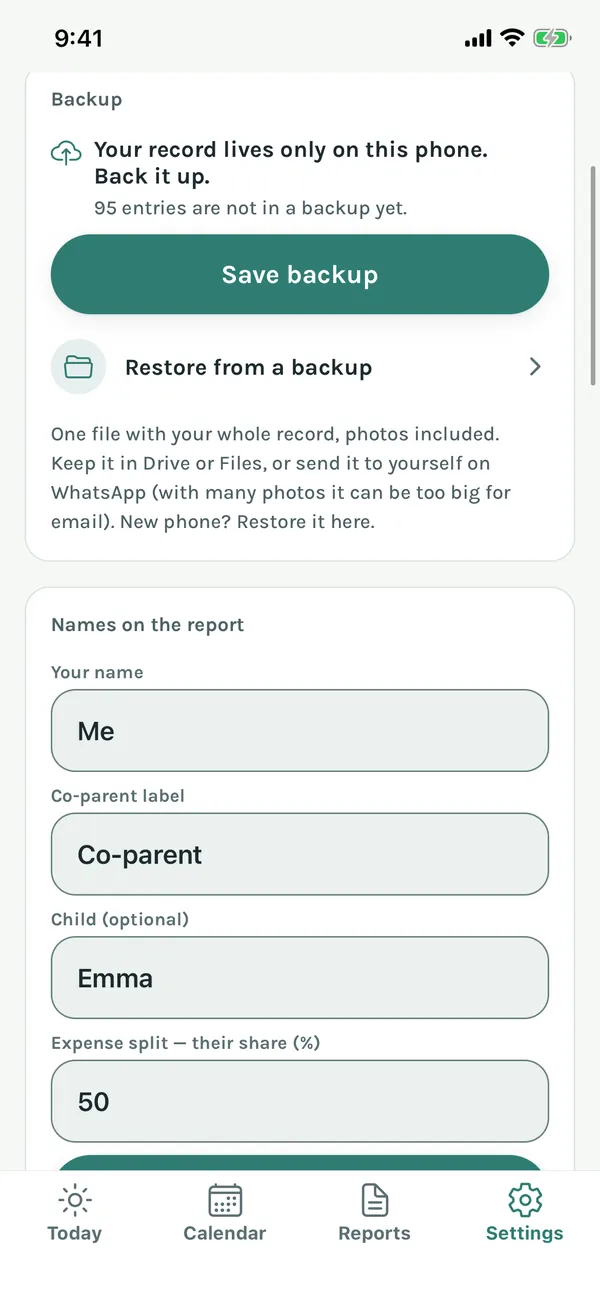
How do I move to a new phone?
- Open “Settings” and tap “Save backup” under “Backup”.
- Save the file where the new phone can open it, like iCloud Drive or Google Drive.
- On the new phone, install CustodyBook, open “Settings” and tap “Restore from a backup”.
- Pick the file and tap “Replace” to confirm.
- If it asks you to unlock, tap “Restore purchase” with the account you bought with.
Tip: Turn on “App lock” again: it isn’t in the backup file. On iPhone, an iCloud backup can also include your record, but the backup file is the copy you control.
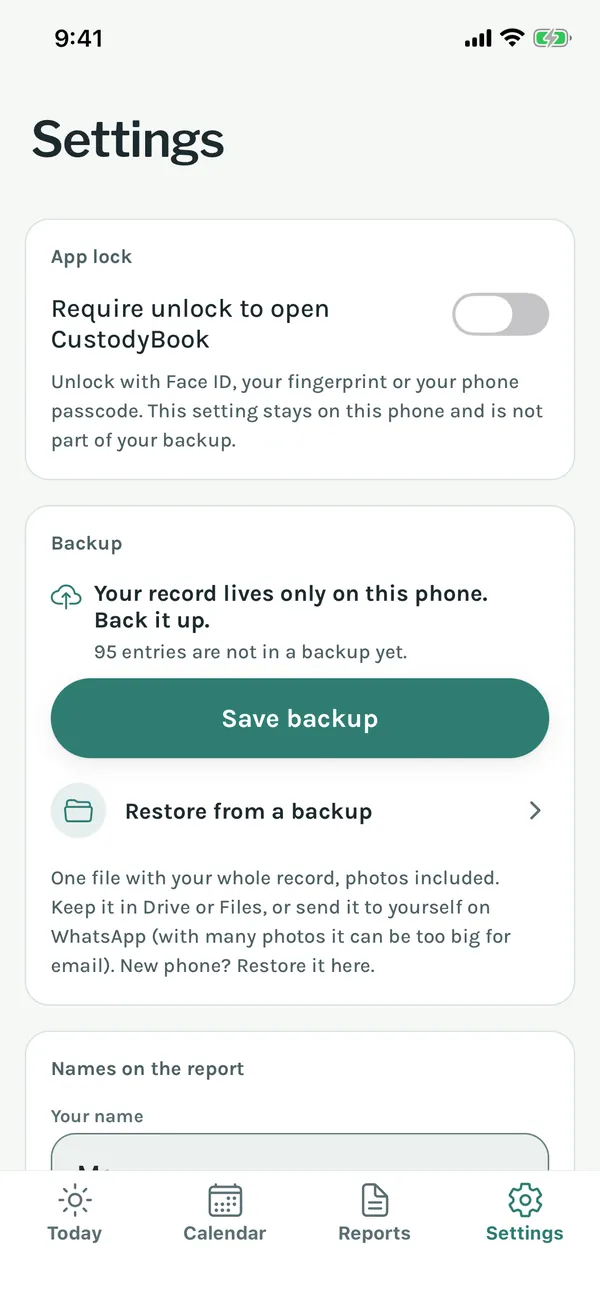
How do I lock CustodyBook?
- Open “Settings”. “App lock” is the first card.
- Turn on “Require unlock to open CustodyBook”.
- Confirm it's you, the same way you unlock your phone.
Tip: The lock setting isn’t in your CustodyBook backup file. If you move to a new phone with a backup file, turn it on again.
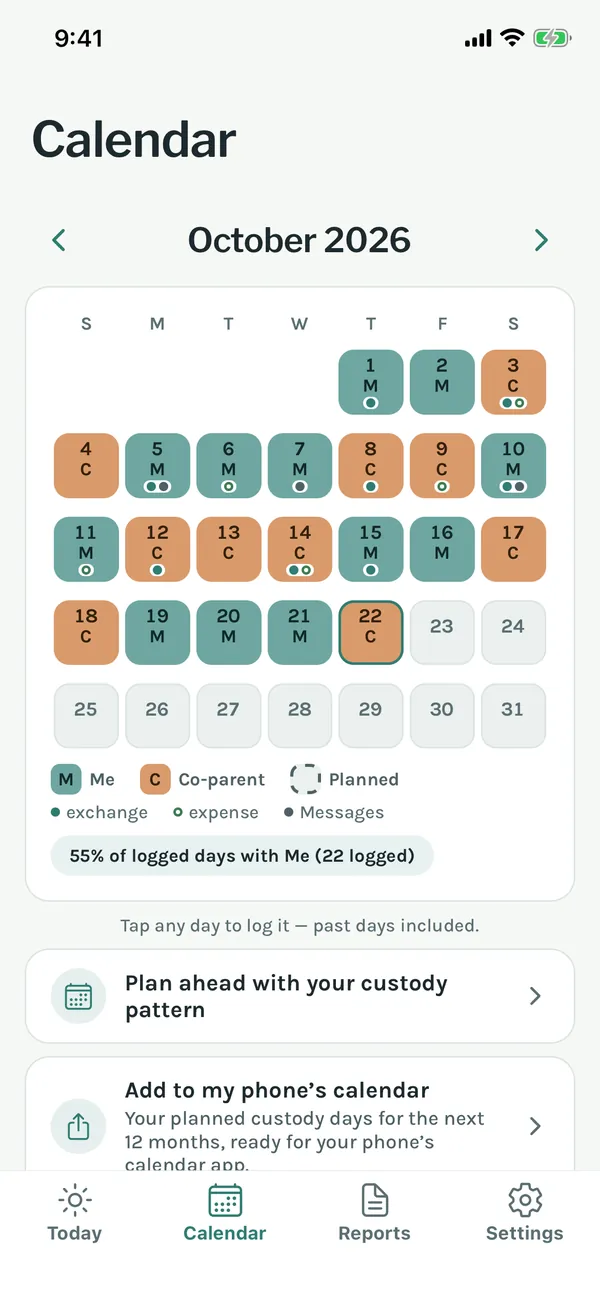
How do I plan ahead and add it to my phone's calendar?
- Open “Calendar” and tap “Plan ahead with your custody pattern”.
- Pick your pattern, then tap “Fill my calendar”.
- Check the future days: they show as “Planned” and count once each day arrives.
- Tap “Add to my phone’s calendar”, then “Create calendar file”, and pick your calendar app.
Tip: Days you already logged are never changed, and you can correct any day with one tap. Anyone who can see your phone's calendar will see the plan, so check who it's shared with first.
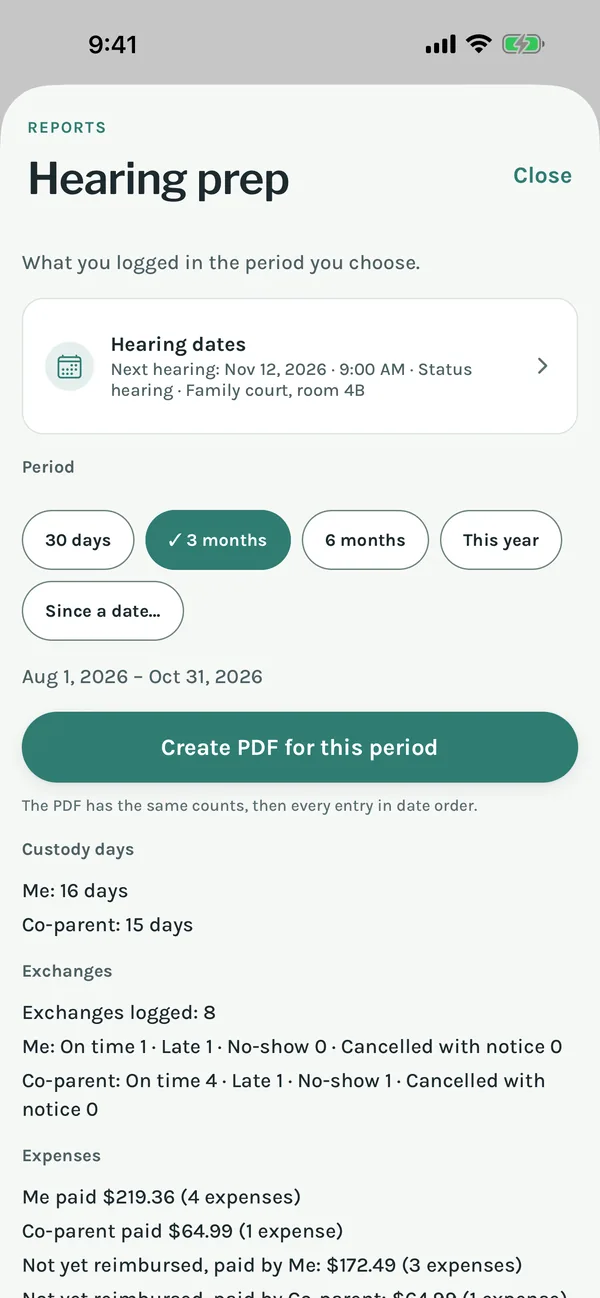
How do I get a summary since my last hearing?
- Open “Reports”. “Create a report” is the first section.
- Choose “Since a date…” and pick the date.
- Tap “Summary and hearing dates” to see the totals in “Hearing prep”.
- Tap “Create PDF for this period” to share or print it.
Tip: It only counts what is in your record; it does not interpret it. Not legal advice.
Still stuck?
Write to us from the app (Settings › “Contact us / Send feedback”) or at support@getcustodybook.com. Nothing from your record is included unless you add it.
CustodyBook makes court-ready PDFs: organized and dated, with edit history and a fingerprint you can verify. Edited later? The PDF says so: "Edited 1×", "Added later", and a change history. A fingerprint on every page. Check any CustodyBook PDF at getcustodybook.com/verify. Nothing is uploaded. The judge decides what is admitted. Not legal advice.


Free for 7 days, then $14.99 once. No subscription. iPhone or Android.